
The LMS mobile app for iPhone, iPad and Android
Learners open their courses, quizzes, certificates and AI Tutor in a native app, and video, audio and document lessons keep playing when the signal drops. Use the LMS Advisor app from the stores, or publish it under your own name.
For iPhone, iPad, Android phones and Android tablets. No in-app purchases.
- Offline lessonsVideo, audio and documents on the phone
- One accountThe same sign-in as the website
- Your brandOptional app under your own name
Home
What learners can do on their phone
The app is a native build for iOS and Android. Lessons, quizzes and certificates run on screens made for a phone, and everything a learner does lands in the same records as the web.
Lessons that play natively
Video with resume, playback speed and full screen, plus audio, PDFs, reading lessons and YouTube or Vimeo. SCORM 1.2 and 2004 packages run in the app’s own player.
Quizzes and assignments
Answer a course quiz one question at a time, then hand in an assignment as a file, a photo or a shot straight from the camera.
Exams on the phone
Exams without proctoring are taken in the app against the LMS clock. Proctored exams show their details and results here and are sat on a computer.
Certificates in a pocket
Open a certificate, save or print the PDF, share its public verification link and start a renewal when it expires.
AI Tutor, with voice
Ask the tutor about the lesson on screen. Where you allow it, learners speak the question and hear the answer read aloud.
QR attendance
Scan the code shown in the room to check in to a class session, and see your own attendance for each course.
Calendar and alerts
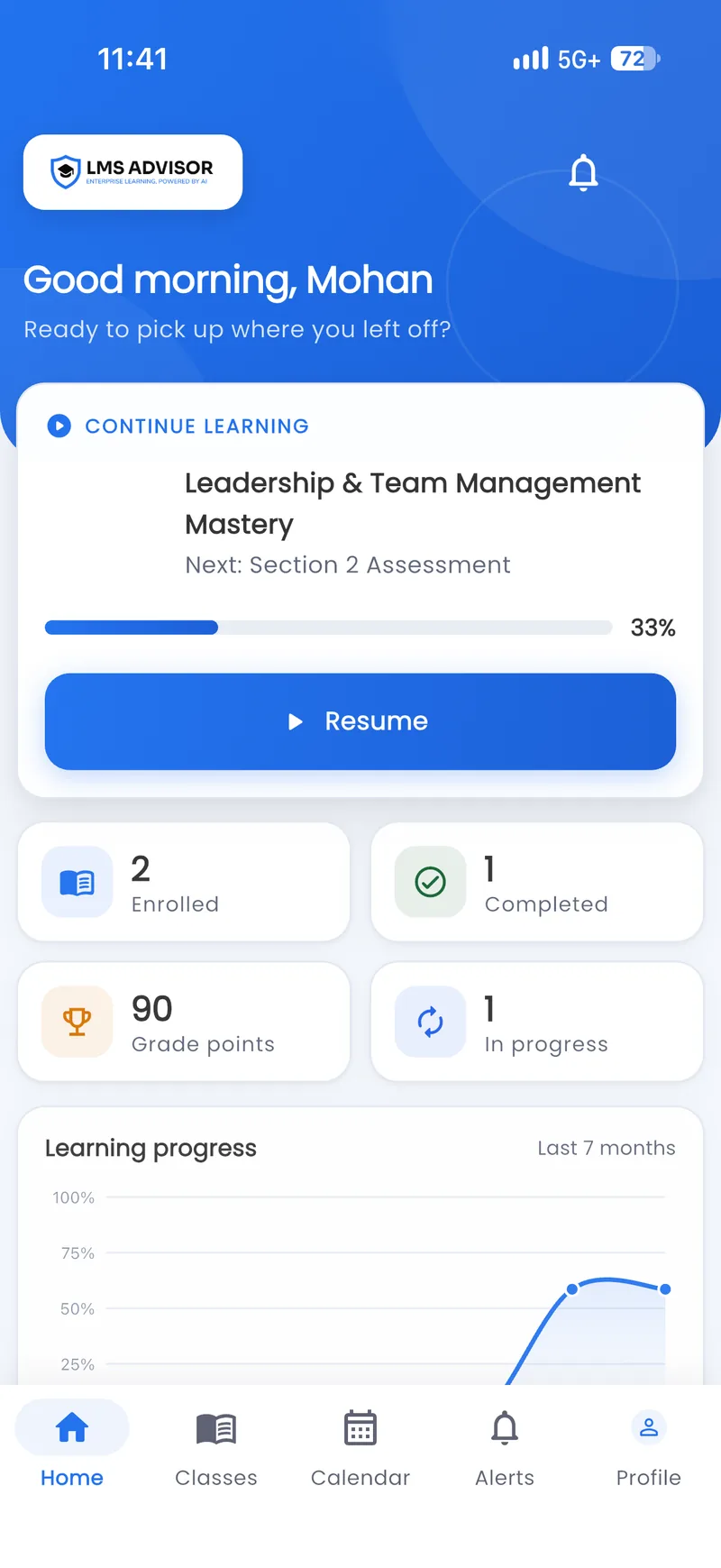
Due dates, webinars and enrollments on a month view, and an alerts inbox with an unread badge that opens the right course or lesson.
Paths, points and a leaderboard
Learning paths as numbered steps, a streak, points and level on the home screen, and the top 50 leaderboard.
Notes, comments and discussion
Private notes on each lesson, lesson comments with replies and the course discussion forum, each shown when you have it switched on.
Lessons that keep playing without a signal
A plant room in the basement, a ward with thick walls, a job site past the last cell tower: that is where training usually stops. In the app a learner switches on offline access, taps Save for offline on a course, and its lessons stay on the phone. Whatever they finish offline is sent to the LMS when the phone reconnects.
You decide whether downloads are allowed at all. Saved lessons sit in the app’s private storage, can be limited to Wi-Fi, are removed at sign-out and expire after 30 days unless they are downloaded again.
Works offline
- Video lessons
- Audio lessons
- PDF and document lessons
- Reading lessons already opened
- Progress and completions, synced later
Needs a connection
- SCORM packages, quizzes and exams
- Live sessions and webinars
- YouTube and Vimeo videos
- QR attendance check-in
- The AI Tutor
Two ways to put it on your learners’ phones
Both are the same app with the same features. The difference is whose name sits in the store.
The LMS Advisor app
Learners install LMS Advisor from the App Store or Google Play, connect to your academy and sign in with the account they already have.
- Ready as soon as mobile access is switched on
- Your organization’s logo, color and font after sign-in
- A good fit for pilots, small teams and a first rollout
Your own branded app
The same app with your name, icon, splash screen and colors, listed in the App Store and Google Play under your own developer accounts. We build it, prepare the listing and send it for review through those accounts.
- Your name under the icon and in the store
- Opens straight to your academy, with no address to type
- The listing and its reviews stay yours
- A paid add-on, quoted with your LMS
Apple and Google review every app, so we never promise an approval date. Most of the wait is opening the store accounts and the review itself.
From switch-on to first lesson
Switch on mobile access
In the LMS, open Settings, then Mobile App. Turn mobile access on and decide whether downloads are allowed, whether the app lock is required and whether screenshots are blocked.
Share the app
Put the store link in your welcome email or on a poster in the break room. With a branded app, learners search for your name instead.
Sign in once
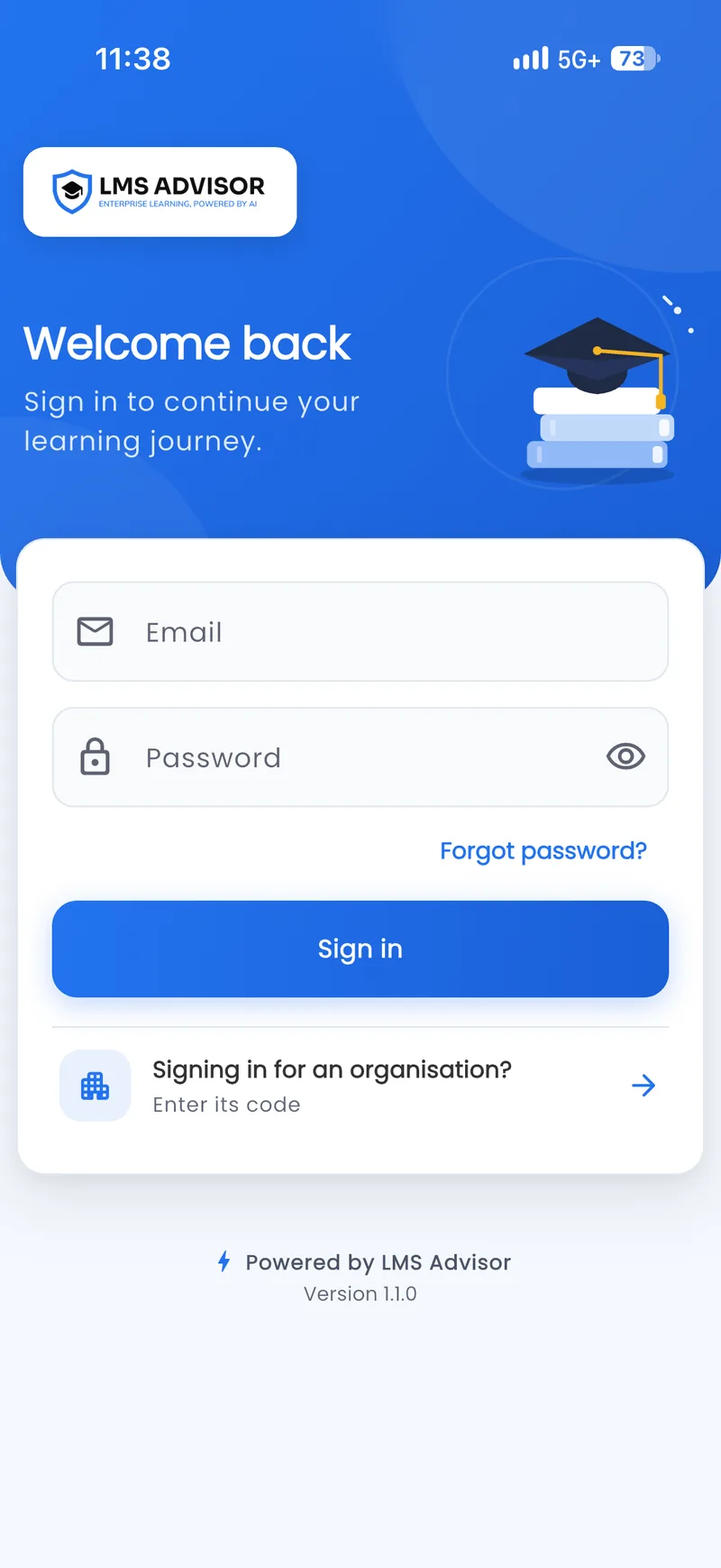
A password, a code sent by email or a code sent to the phone, with two-step verification if you use it. There is no second account to create.
Learn anywhere
Courses pick up where the learner stopped on the web, and what they complete in the app shows in the same reports.
Built for phones that leave the building
A training app holds names, results and certificates, and it travels in a pocket. These controls ship in the app and in the LMS settings behind it.
App lock
Learners can put the app behind Face ID, a fingerprint or the phone passcode. You can make the lock mandatory for everyone.
Short-lived sessions
Access tokens last 15 minutes and renew in the background. The refresh key is kept in the iOS Keychain or the Android Keystore.
Signed-in devices
Each learner sees the devices signed in to their account. Changing the password signs the other devices out.
Screenshot blocking on Android
Turn on Block screenshots in the LMS and Android returns a black frame for screenshots and screen recordings. The setting applies to Android only.
Encrypted connections only
The app refuses plain http and any certificate it cannot verify. A branded build can also pin your server’s key.
Account deletion built in
A learner can ask for their account to be deleted from inside the app. The request lands in your privacy request queue.
Mobile app or web app: which one when
LMS Advisor also installs from the browser as a Progressive Web App. Most teams offer both and let people choose.
| What you need | Mobile app (iOS and Android) | Web app (PWA) or browser |
|---|---|---|
| How people get it | App Store or Google Play, or your branded listing | Open a link. Add to Home Screen if they want an icon |
| Offline lessons | Video, audio and documents, when you allow downloads | No. Lessons need a connection |
| Sign-in | Password, email code or phone code, with two-step verification | Everything the website offers, including SAML single sign-on, Google sign-in and passkeys |
| Content types | Video, audio, PDF, reading, live sessions, quizzes and SCORM 1.2 and 2004 | All of those, plus xAPI, cmi5 and interactive modules |
| Exams | Exams without proctoring | Every exam. Proctored exams need a computer |
| Attendance | Built-in QR scanner | Scan the code with the phone camera |
| Alerts | Alerts inbox with an unread badge | Notification bell, plus web push in the installed web app |
| Best for | People who learn every week, and anyone with patchy signal | A first lesson within minutes of a hiring text, and staff who sign in with SSO |
What the app does not do
We would rather you read this here than find it in a pilot.
Proctored exams stay on a computer
Exams with webcam checks, lockdown or ID capture are not taken in the app. It shows their details and results.
Some lesson types open on the web
xAPI and cmi5 packages and block-based interactive modules run in the browser. SCORM 1.2 and 2004 play in the app.
Offline has edges
Downloads cover video, audio and documents. Quizzes, SCORM, exams and live sessions wait for a connection.
No single sign-on inside the app
The app signs in with a password or a one-time code. Staff who only have SSO use the browser or the installed web app.
No push to the lock screen yet
Reminders arrive by email, Slack or Microsoft Teams and in the alerts inbox. Phone push is not part of the app today.
Nothing is sold in the app
There are no in-app purchases. Courses bought in your WooCommerce store or assigned by an admin appear in My courses.
Who the mobile app is for
Most training platforms assume a desk. Most people who need training do not have one. The app exists for them: the learner who has ten minutes between tasks and a phone, and the manager who needs that ten minutes to count in a report.
Frontline and field teams
Construction crews, store staff, hotel and restaurant teams and plant operators rarely have a company email address. They sign in with a one-time code sent to their phone, save the week’s videos while they are on Wi-Fi and watch them where the signal gives out. Hands-on sessions are recorded with a QR check-in, so the toolbox talk and the online lesson end up in one record.
Clinical and shift-based staff
In healthcare, training competes with the shift. A nurse can finish an annual module on a break, pass the quiz and have the certificate with its expiry date on the phone before the next handover. Managers still see who is overdue from the same reports they use today.
Students and course buyers
Schools and colleges, coaching institutes and training providers usually want their own name on the learner’s home screen. That is what the branded app is for. Recorded classes, PDFs, quizzes and the course discussion sit under your icon, and courses sold through your WooCommerce store appear in My courses after purchase.
What stays on the web
Building courses, managing people, reading reports and sitting proctored exams are jobs for a larger screen, and they stay in the browser. The app is the learner’s side of the platform, built to be opened often and for a few minutes at a time.
How the app and the LMS stay in step
The app talks to your LMS through one mobile API and never keeps its own copy of your rules. If you hide a menu item on the website, it is hidden in the app. If you switch off the AI Tutor, the forum or the leaderboard, the app stops showing it. Drip schedules, sequential lessons and the no-skipping rule on video behave the same in both places.
That also means one set of records. A lesson completed on the train and a quiz passed at a desk are the same enrollment, the same progress bar and the same line in an export. For a deeper look at how learners move through courses, see learning paths and assessments and quizzes.
Mobile app questions
Is the LMS Advisor mobile app available for both iPhone and Android?
Do learners need a separate account for the app?
Can learners take courses offline?
Can we publish the app under our own brand?
Can exams be taken in the mobile app?
Does SCORM content work in the app?
Which languages does the app support?
What is the difference between the mobile app and the installable web app?
How do we turn the mobile app on for our academy?
See the app with your own courses
Bring one course to the call. We load it, open it on a phone and show you what your learners would see, online and offline.
- Your course on a real phone, online and offline
- The branded app option explained, step by step
- Reply within one business day