The LMS Advisor mobile app is now on iPhone, iPad and Android
The LMS Advisor apps for iOS and Android are live. Here is what learners can do in them, what works offline, how the branded app works and the limits to know before rollout.
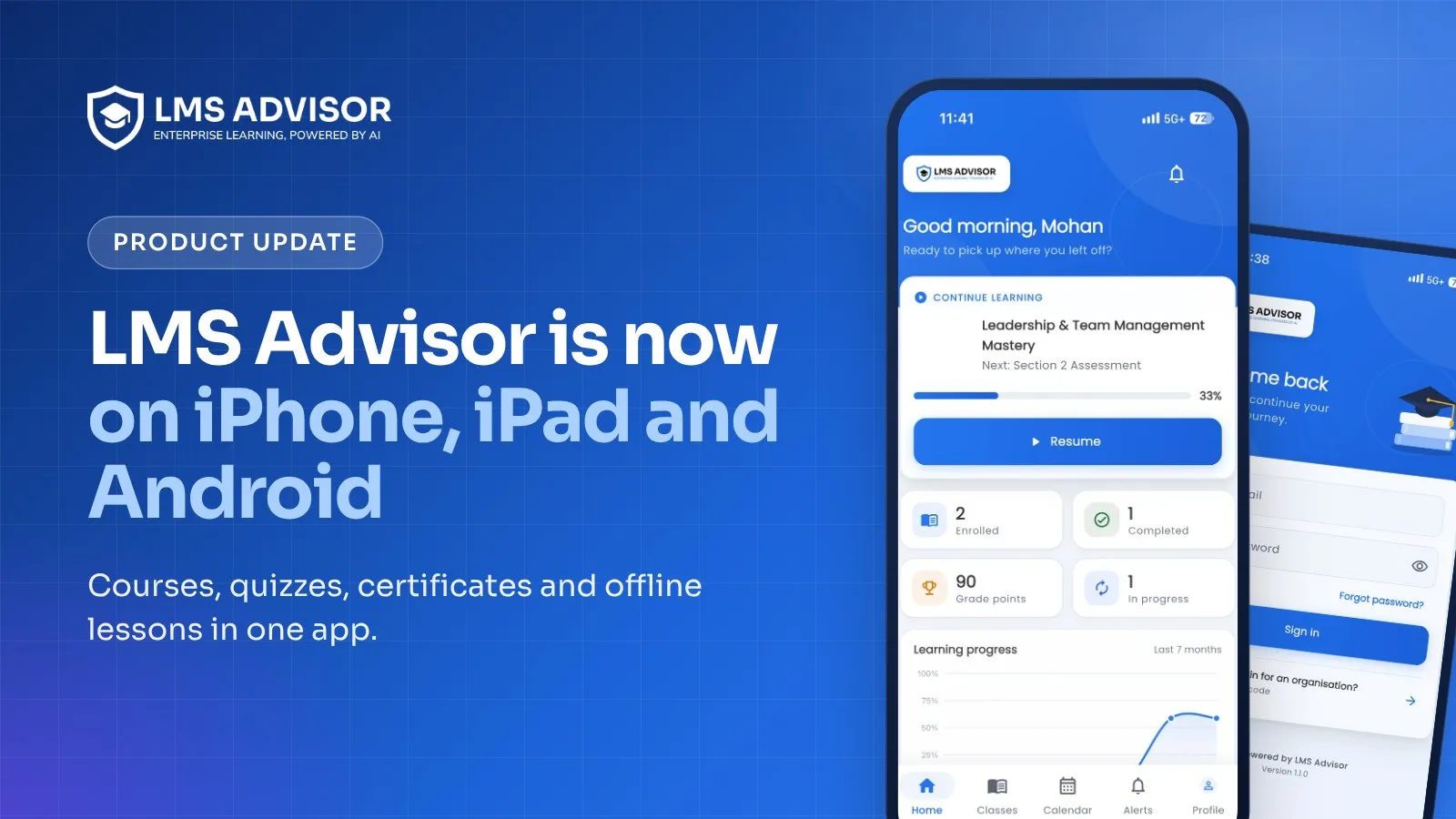
The LMS Advisor mobile app is live on the App Store and Google Play, for iPhone, iPad, Android phones and Android tablets. Learners sign in with the same account they use on the web and get their courses, quizzes, assignments, certificates and class check-ins in one native app. Video, audio and document lessons can be saved to the phone for offline use when your academy allows downloads.
To install it, search for LMS Advisor on the App Store or Google Play, or use the store buttons on the LMS Advisor mobile app page. There is also a branded option, published under your own name through your organization's store accounts. Below: what learners can do, what works offline, what admins control and what still belongs on a computer.
Who the app is for
Until now, learning on a phone with us meant the responsive site or the installable PWA. Both still work, and both need a live connection. That is a poor fit for a framing crew on a basement level with no signal, or a night-shift aide with ten quiet minutes between rounds.
The phone is the one device nearly every learner already carries. About nine in ten US adults (91%) own a smartphone, according to Pew Research Center's mobile fact sheet, which draws on a 2025 survey. We built the app for the people a desktop LMS reaches worst:
- Staff who train away from a desk: shift workers, field crews, store and kitchen teams.
- Learners with patchy signal who need lessons saved on the phone.
- People without a company email address, who can sign in with a one-time code sent to their phone.
- Members, students and customers who expect a store app instead of a browser bookmark.
What can learners do in the app?
Most of what a learner does on the web is now a native screen.
| Area | In the app |
|---|---|
| Home and courses | Continue learning, streak, points and level, what is coming up, My courses with search and filters, and a catalog with self-enrollment when your academy allows it |
| Lessons | Video with resume, playback speed and full screen, YouTube and Vimeo, audio, PDF and documents, reading lessons, SCORM 1.2 and 2004 packages, and Zoom or Google Meet joins for live sessions |
| Quizzes | Single choice, multiple choice, true/false, fill in the blank and short answer |
| Assignments | Hand in a file, a photo or a camera shot |
| Exams | Exam list, details and results. An exam without proctoring is taken in the app, against the LMS clock |
| Certificates | View, save, print or send as PDF, share the public verification link, and renew |
| AI Tutor | Tutor chat when your academy has the tutor on, with optional voice: speak a question and hear the answer read aloud |
| Calendar and attendance | Calendar, QR check-in with the phone camera, and the learner's own attendance per course |
| Alerts | An in-app alerts inbox with an unread badge |
| Also in the app | Learning paths, leaderboard, My Drive, forms, webinars, help center, private lesson notes, lesson comments, the course discussion forum, course reviews and course materials |
The rules you set on the web carry over. Drip schedules, sequential order and lesson locks behave the same way, and so does the "no skipping" rule on video. Tutor voice uses the phone's own speech services, and nothing is recorded.
One app serves phones and tablets, and on wider screens the tabs become a side rail. It speaks nine languages: English, Hindi, Urdu (right to left), French, German, Spanish, Swedish, Swahili and Portuguese. It also follows your academy's own wording, for example "Training" instead of "Course".
Does the app work offline?
Partly, and the scope is specific. Two switches have to be on: your academy allows downloads, and the learner turns on offline access in the app. After that, a course's video, audio and document (PDF) lessons are saved on the phone and play without a connection.
- Text lessons the learner has already opened stay readable.
- Progress made offline is queued and sent when the phone is back online.
- There is a Wi-Fi-only option for downloads.
- Saved lessons sit in the app's private storage, are removed at sign-out and expire after 30 days unless downloaded again.
A connection is still required for SCORM packages, quizzes, exams, live sessions and YouTube or Vimeo videos. If a crew trains where coverage is poor, use uploaded video, audio and PDF lessons instead of SCORM packages or YouTube embeds, and place the quiz where people will be back in range.
How learners sign in
There is no second account. The app uses the same users, passwords and roles as your website. Learners sign in with a password, a one-time code sent by email or a one-time code sent to their phone, and the app shows only the methods your academy has switched on. Two-step verification works with an authenticator app or a backup code, and there is a forgot-password option.
If you run several organizations in one LMS, an organization's login code brands the sign-in screen. Members of a branded organization get its logo, color and font after they sign in.
Phones get lost and shared, so a security reviewer will ask about three things:
- App lock. An optional lock with Face ID, fingerprint or passcode. An academy can require it.
- Device control. Learners see a list of signed-in devices, can sign out everywhere and can send an account deletion request from the app.
- Token storage. Access tokens are short-lived, the refresh token is kept in the iOS Keychain or Android Keystore, and the app connects over https only.
Can we publish the app under our own brand?
Yes. There are two ways to put the app in learners' hands. The first is the LMS Advisor app: learners install it from the store, connect to their academy and sign in. The second is a branded app, which is the same app built with your name, icon, splash screen and colors, and published under your organization's own Apple and Google developer accounts.
The reason for your own accounts is an Apple rule. Guideline 4.2.6 of the App Review Guidelines reads: "Apps created from a commercialized template or app generation service will be rejected unless they are submitted directly by the provider of the app's content." A branded build is our app carrying your identity, and the content inside it is yours. So the listing has to sit in your account. We follow the same model on Google Play, which keeps both listings in your organization's hands.
| Who | Does what |
|---|---|
| Our team | Builds the app with your branding, prepares the store listing and sends each build for review through your accounts |
| Your organization | Holds the Apple and Google developer accounts in its own name, invites our team to them as a manager (we never need your passwords), and supplies the app name, icon, splash screen and colors |
The branded app is a paid add-on, made up of setup and a yearly care plan, and we quote it separately. Apple and Google review every app, so we do not promise an approval date. Branded builds can also pin your LMS's TLS key.
What admins control
Everything sits in the LMS under Settings > Mobile App.
- Mobile access. On or off for your academy.
- Minimum app version. The oldest version of the app you accept.
- Allow downloads. Whether learners may save lessons for offline use.
- Block screenshots. Blocks screenshots and screen recording on Android. It does not apply to iPhone or iPad.
- Require app lock. Makes Face ID, fingerprint or passcode mandatory.
- QR sign-in. Whether learners can sign in on a computer by scanning a QR code with the app.
- AI Tutor voice. Whether the tutor chat offers speaking and read-aloud.
What the app does not do today
Better to read the limits here than to find them in a pilot.
- Proctored exams. These are taken on a computer, and so are exams with recording, upload or coding questions. The proctoring controls, such as webcam snapshots and fullscreen lockdown, are built for a computer.
- xAPI, cmi5 and interactive modules. xAPI and cmi5 packages and block-based interactive modules run on the web. Our e-learning standards page explains how each format is handled.
- Phone push. The app does not send push notifications to the phone. New alerts appear in the in-app inbox with an unread badge, and the LMS still sends its emails and its Slack or Microsoft Teams notifications as before.
- Single sign-on. SAML single sign-on is not available inside the app. Learners use a password or a one-time code, with two-step verification.
- Purchases. Nothing is sold in the app. Courses bought through your WooCommerce store or assigned by an admin simply appear in My courses.
- Offline scope. Only video, audio and document lessons download. SCORM, quizzes, exams and live sessions need a connection.
Should learners use the app or the PWA?
Make the app the default. The PWA stays for learners who do not want a store download.
| Mobile app | Installable PWA | |
|---|---|---|
| How it is installed | From the App Store or Google Play | Home-screen install from the browser |
| Lessons without a connection | Video, audio and documents, when downloads are allowed | No. Lessons need a connection |
| Alerts | In-app inbox with an unread badge | Web push in the browser |
Both use the same account as the web, so you do not have to choose one for everybody. The mobile learning PWA page covers the browser install.
How to get started
If your organization already runs LMS Advisor:
- Update your LMS to the current release.
- Open Settings > Mobile App, switch mobile access on, then decide on downloads and app lock.
- Pilot with one team. Check a video course, a quiz, a certificate and a QR check-in on real phones.
- Tell learners to search for LMS Advisor on the App Store or Google Play, or point them to the buttons on the mobile app page. They connect to your academy and sign in with their usual account.
If you are still choosing a platform, request a demo and ask us to walk through the app, or get started on your own.
Frequently asked questions
Is the LMS Advisor mobile app free to download?
Learners pay nothing inside the app: it has no in-app purchases and nothing is sold there. An academy only has to switch mobile access on in its LMS settings. The branded app, published under your own name, is a paid add-on that we quote separately.
Can learners take exams in the app?
Yes, when the exam has no proctoring. Those exams are taken in the app against the LMS clock, and learners can see their exam list, details and results there. Proctored exams, and exams with recording, upload or coding questions, are taken on a computer.
Does the app play SCORM courses?
Yes. SCORM 1.2 and SCORM 2004 packages play in the app's own SCORM player, and they need a connection. xAPI and cmi5 packages and block-based interactive modules run on the web instead.
Can we block screenshots of course content?
On Android, yes. The LMS "block screenshots" setting blocks screenshots and screen recording in the Android app. It does not cover iPhone or iPad, so do not treat it as your only protection for sensitive material.
Add lmsadvisor.com as a preferred source on Google, or open this article in your AI assistant to use it as a source.

I'm Swati Priyadarshani, Founder & CEO of LMS Advisor and Co-Founder of WorldWin Coder Pvt. Ltd. (est. 2019). Over the last 10+ years, I've helped enterprises build learning platforms that actually get used - not just deployed.